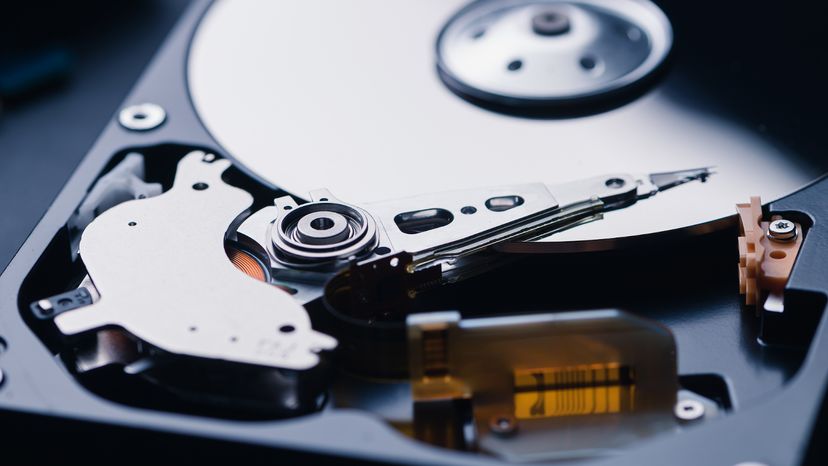
Buying and Installing Your New Hard Drive
You can buy a new hard drive from many different places: a retail store, a large computer store, a local computer parts store or by mail order. Wherever you go to buy it buy it, keep three things in mind:- Buy a "normal" 3.5-inch wide hard drive. They're sold everywhere, but you want to avoid the smaller hard disk drives made for laptops.
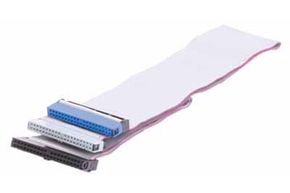
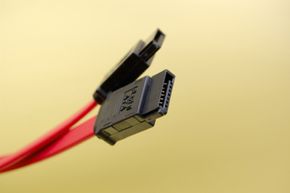
- Make sure the new drive has the correct cable system (SATA or PATA) to match your machine.
- Make sure the drive is big.Buy the biggest drive you can afford, because it will probably fill up before you know it.
Before we start working with the drive, we need to talk about static electricity. Your computer is highly sensitive to static shocks. This means that if you build up static electricity on your body and a shock passes from your body to something like a hard drive, that hard drive is dead and you will have to buy another one.
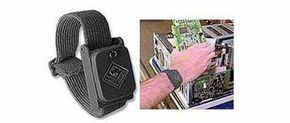
![]() To avoid passing static electricity to your new hard drive, you can wear an inexpensive grounding bracelet. |
The way to eliminate static electricity is by grounding yourself. There are lots of ways to do this, but probably the easiest way is to wear a grounding bracelet on your wrist. Then you connect the bracelet to something grounded (like a copper pipe or the center screw on a wall outlet's face plate). By connecting yourself to ground, you eliminate the possibility of static shock. You can get a bracelet for a few dollars.
Installing a new disk drive is easy. You have five basic steps: setting the jumpers, mounting the drive, plugging in the power connector, connecting the cable and configuring the drive.
First, set the jumpers (if it is an IDE drive). Let's talk about this in more detail, because most people have IDE drives.
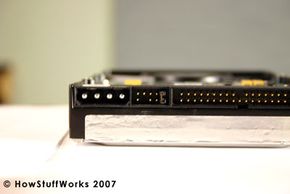
![]() |
In the IDE system, most motherboards allow you to have two IDE cables. Each cable can connect to two drives. Usually you use one cable to connect one or two optical drives to your machine. The other cable is used to connect one or two hard drives to your machine.
You want both hard drives to be on the same cable. The two drives on the cable are called "master" and "slave." You want your existing hard drive (which contains the operating system and all of your current data) to be the "master" and the new hard drive to be the "slave." The drive should have instructions on them that tell you how to set the jumpers for master and slave. So read the instructions and set the jumpers. If you are using SATA drives, you do not need to set jumpers for master and slave because each drive gets its own cable. Check out How IDEs Work to learn more about the master and slave configuration.
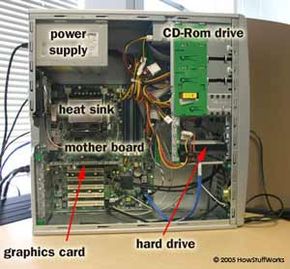
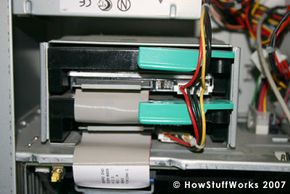
Now that the jumpers are set correctly, mount the new drive in your drive cage and screw it into place.
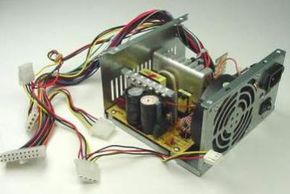
Next, plug in the drive's power connector to the power supply. If it fits, then it's a match.
Connect the IDE or SATA cable to the drive.
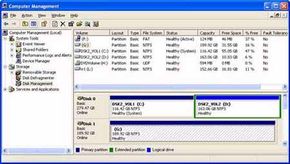
Close the machine, power it up and configure your new drive using the Windows XP drive administration tool. To do this, click the Start button, open the Control Panel, Switch to Classic View, click on Administrative Tools, click on Computer Management, click on Disk Management. You will see something that looks like this:
![]() The last step in the process of adding a new hard drive is formatting that hard drive using the Windows XP drive adminstration tool. |
Look at the graphical area in the bottom right of this display. Disk 0 is your original hard drive. Disk 1 is the new hard drive. Chances are that the new drive will not be initialized , or formatted. Click the small button to initialize the drive, and then format it as an NTFS volume (right click on the new drive, then click “Format...”). Formatting may take an hour or more, so be patient.
When the formatting is done, you are ready to use your new drive.
For lots more information on hard drives, computers and more, check out the links on the next page.
|
There is one big advantage to an external drive: you can plug it into multiple machines and move files around. You can take it with you anywhere you go. The only real disadvantage is that it will be slower than an internal drive. If it takes a minute to copy a gigabyte of data on an internal drive, it might take two minutes on an external drive. That may or may not be important depending on what you want to do. For most applications, the slower speed is irrelevant. |