Introduction to How Graphics Cards Work
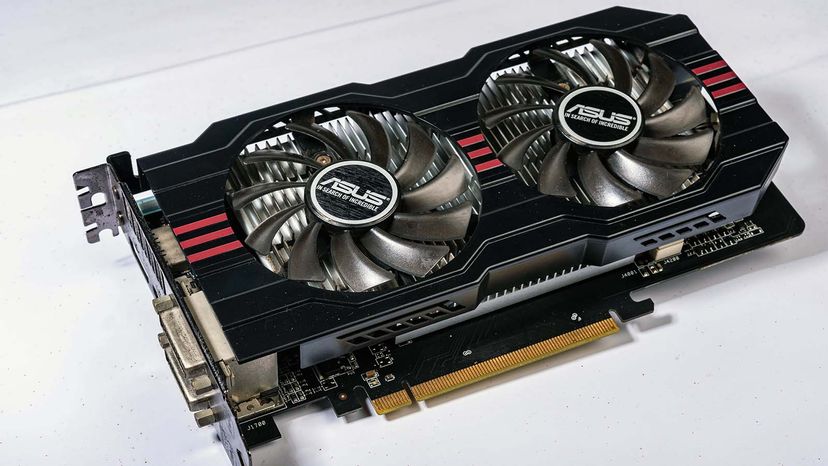
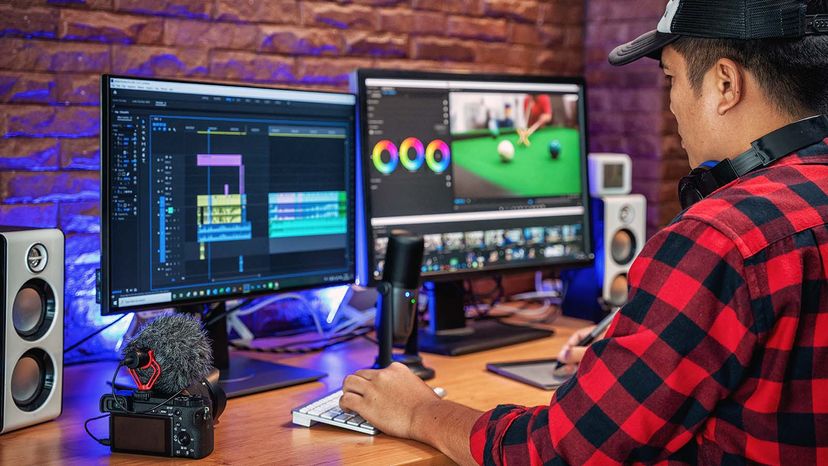
The images you see on your monitor are made of tiny dots called pixels. At most common resolution settings, a screen displays over a million pixels, and the computer has to decide what to do with every one in order to create an image. To do this, it needs a translator -- something to take binary data from the CPU and turn it into a picture you can see. Unless a computer has graphics capability built into the motherboard, that translation takes place on the graphics card.
A graphics card's job is complex, but its principles and components are easy to understand. In this article, we will look at the basic parts of a video card and what they do. We'll also examine the factors that work together to make a fast, efficient graphics card.
![]() The graphics card creates a wire frame image, then fills it in and adds textures and shading. |
Graphics Card Basics
Think of a computer as a company with its own art department. When people in the company want a piece of artwork, they send a request to the art department. The art department decides how to create the image and then puts it on paper. The end result is that someone's idea becomes an actual, viewable picture.
![]() Photo courtesy of HowStuffWorks Shopper The four main components of a graphics card are connections for the motherboard and monitor, a processor, and memory. |
A graphics card works along the same principles. The CPU, working in conjunction with software applications, sends information about the image to the graphics card. The graphics card decides how to use the pixels on the screen to create the image. It then sends that information to the monitor through a cable.
|
|
Creating an image out of binary data is a demanding process. To make a 3-D image, the graphics card first creates a wire frame out of straight lines. Then, it rasterizes the image (fills in the remaining pixels). It also adds lighting, texture and color. For fast-paced games, the computer has to go through this process about sixty times per second. Without a graphics card to perform the necessary calculations, the workload would be too much for the computer to handle.
The graphics card accomplishes this task using four main components:
- A motherboard connection for data and power
- A processor to decide what to do with each pixel on the screen
- Memory to hold information about each pixel and to temporarily store completed pictures
- A monitor connection so you can see the final result
Next, we'll look at the processor and memory in more detail.
Processor and Memory
Like a motherboard, a graphics card is a printed circuit board that houses a processor and RAM. It also has an input/output system (BIOS) chip, which stores the card's settings and performs diagnostics on the memory, input and output at startup. A graphics card's processor, called a graphics processing unit (GPU), is similar to a computer's CPU. A GPU, however, is designed specifically for performing the complex mathematical and geometric calculations that are necessary for graphics rendering. Some of the fastest GPUs have more transistors than the average CPU. A GPU produces a lot of heat, so it is usually located under a heat sink or a fan.
![]() Photo courtesy of HowStuffWorks Shopper A heat sink or fan keeps a graphics card's processor from overheating. |
In addition to its processing power, a GPU uses special programming to help it analyze and use data. ATI and nVidia produce the vast majority of GPUs on the market, and both companies have developed their own enhancements for GPU performance. To improve image quality, the processors use:
- Full scene anti aliasing (FSAA), which smoothes the edges of 3-D objects
- Anisotropic filtering (AF), which makes images look crisper
|
|
Each company has also developed specific techniques to help the GPU apply colors, shading, textures and patterns.
As the GPU creates images, it needs somewhere to hold information and completed pictures. It uses the card's RAM for this purpose, storing data about each pixel, its color and its location on the screen. Part of the RAM can also act as a frame buffer, meaning that it holds completed images until it is time to display them. Typically, video RAM operates at very high speeds and is dual ported, meaning that the system can read from it and write to it at the same time.
The RAM connects directly to the digital-to-analog converter, called the DAC. This converter, also called the RAMDAC, translates the image into an analog signal that the monitor can use. Some cards have multiple RAMDACs, which can improve performance and support more than one monitor. You can learn more about this process in How Analog and Digital Recording Works.
The RAMDAC sends the final picture to the monitor through a cable. We'll look at this connection and other interfaces in the next section.
Input and Output
|
|
Connections to the motherboard are usually through one of three interfaces:
- Peripheral component interconnect (PCI)
- Advanced graphics port (AGP)
- PCI Express (PCIe)
Most graphics cards have two monitor connections. Often, one is a DVI connector, which supports LCD screens, and the other is a VGA connector, which supports CRT screens. Some graphics cards have two DVI connectors instead. But that doesn't rule out using a CRT screen; CRT screens can connect to DVI ports through an adapter.
Most people use only one of their two monitor connections. People who need to use two monitors can purchase a graphics card with dual head capability, which splits the display between the two screens. A computer with two dual head, PCIe-enabled video cards could theoretically support four monitors.
![]() Photo courtesy of HowStuffWorks Shopper This Radeon X800XL graphics card has DVI, VGA and ViVo connections. |
In addition to connections for the motherboard and monitor, some graphics cards have connections for:
- TV display: TV-out or S-video
- Analog video cameras: ViVo or video in/video out
- Digital cameras: FireWire or USB
Next, we'll look at how to choose a good graphics card.
|
APIs are different from drivers, which are programs that allow hardware to communicate with a computer's operating system. But as with updated APIs, updated device drivers can help programs run correctly. |
Choosing a Good Graphics Card
A top-of-the-line graphics card is easy to spot. It has lots of memory and a fast processor. Often, it's also more visually appealing than anything else that's intended to go inside a computer's case. Lots of high-performance video cards are illustrated or have decorative fans or heat sinks.But a high-end card provides more power than most people really need. People who use their computers primarily for e-mail, word processing or Web surfing can find all the necessary graphics support on a motherboard with integrated graphics. A mid-range card is sufficient for most casual gamers. People who need the power of a high-end card include gaming enthusiasts and people who do lots of 3-D graphic work.
![]() Photo courtesy of HowStuffWorks Shopper Some cards, like the ATI All-in-Wonder, include connections for televisions and video as well as a TV tuner. |
A good overall measurement of a card's performance is its frame rate, measured in frames per second (FPS). The frame rate describes how many complete images the card can display per second. The human eye can process about 25 frames every second, but fast-action games require a frame rate of at least 60 FPS to provide smooth animation and scrolling. Components of the frame rate are:
- Triangles or vertices per second: 3-D images are made of triangles, or polygons. This measurement describes how quickly the GPU can calculate the whole polygon or the vertices that define it. In general, it describes how quickly the card builds a wire frame image.
- Pixel fill rate: This measurement describes how many pixels the GPU can process in a second, which translates to how quickly it can rasterize the image.
- GPU clock speed (MHz)
- Size of the memory bus (bits)
- Amount of available memory (MB)
- Memory clock rate (MHz)
- Memory bandwidth (GB/s)
- RAMDAC speed (MHz)
|
|
For more information on graphics cards and related topics, check out the links on the following page.
Lots More Information
Related HowStuffWorks Articles
- How PCs Work
- How AGP Works
- How PCI Works
- How PCI Express Works
- How RAM Works
- How BIOS Works
- How Monitors Work
- How Motherboards Work
- How 3-D Graphics Work
- How Bits & Bytes Work
- How Microprocessors Work
-
Partner Links
- How To Add A Video Card
More Great Links
Bibliography
Web Pages
These are some sources that we found useful in researching this article:
http://www.itreviews.co.uk/guide/hguide6.htm
http://www20.graphics.tomshardware.com/graphic/20041110/index.html
http://graphics.tomshardware.com/graphic/20050302/index.html
http://www.opengl.org/about/overview.html
http://www.pcworld.com/howto/bguide/0,guid,21,00.asp
http://www.microsoft.com/windows/directx/default.aspx
Video Card Overclocking http://www.hardwaresecrets.com/article/141
http://graphics.tomshardware.com/graphic/20040603/index.html
http://www.realtimesoft.com/multimon/faq.asp