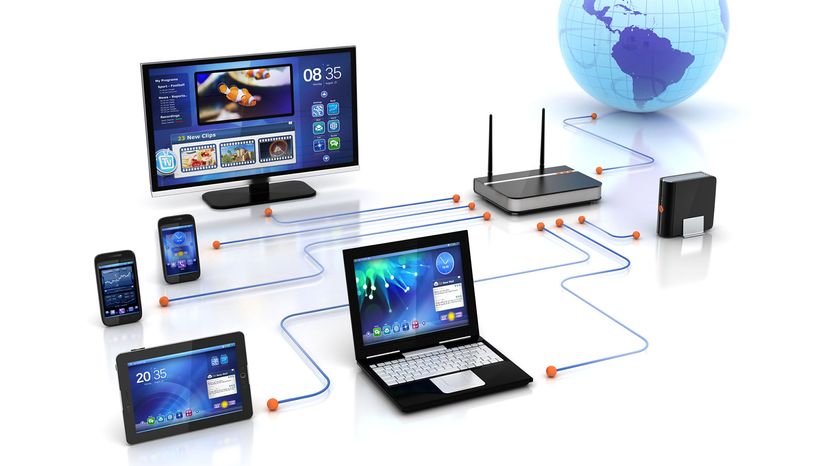
A wireless network uses radio waves, just like cell phones, televisions and radios do. In fact, communication across a wi network is a lot like two-way radio communication. Here's what happens:
- A computer's wireless adapter translates data into a radio signal and transmits it using an antenna.
- A wireless router receives the signal and decodes it. The router sends the information to the internet using a physical, wired ethernet connection.
The process also works in reverse, with the router receiving information from the internet, translating it into a radio signal and sending it to the computer's wireless adapter.
The radios used for WiFi communication are very similar to the radios used for walkie-talkies, cell phones and other devices. They can transmit and receive radio waves, and they can convert 1s and 0s into radio waves and convert the radio waves back into 1s and 0s. But WiFi radios have a few notable differences from other radios:
- They transmit at frequencies of 2.4 GHz or 5 GHz. This frequency is considerably higher than the frequencies used for cell phones, walkie-talkies and televisions. The higher frequency allows the signal to carry more data.
- 2.4 GHz connections are now considered somewhat obsolete because they carry lower data speeds than 5 GHz. The 2.4 band continues to see use, however, because the lower frequency can carry over several hundred feet. In ideal conditions, the 5 GHz band has a max range of about 200 feet (61 meters), but in the real world, it is much more prone to interference from walls, doors and other objects. The 2.4 band may be faster for a user connecting to a router several rooms away, while 5 GHz will definitely be faster for a close connection.
WiFi uses 802.11 networking standards, which come in several flavors and have evolved over the decades:
802.11b (introduced in 1999) is the slowest and least expensive standard. For a while, its cost made it popular, but now it's less common as faster standards become less expensive. 802.11b transmits in the 2.4 GHz frequency band of the radio spectrum. It can handle up to 11 megabits of data per second, and it uses complementary code keying (CCK) modulation to improve speeds.
802.11a (introduced after 802.11b) transmits at 5 GHz and can move up to 54 megabits of data per second. It uses orthogonal frequency-division multiplexing (OFDM), a more efficient coding technique that splits that radio signal into several sub-signals before they reach a receiver. This greatly reduces interference.
802.11g transmits at 2.4 GHz like 802.11b, but it's a lot faster — it can handle up to 54 megabits of data per second. 802.11g is faster because it uses the same OFDM coding as 802.11a.
802.11n (introduced in 2009) is backward compatible with a, b and g. It significantly improved speed and range over its predecessors. For instance, although 802.11g theoretically moves 54 megabits of data per second, it only achieves real-world speeds of about 24 megabits of data per second because of network congestion. 802.11n, however, reportedly can achieve speeds as high as 140 megabits per second. 802.11n can transmit up to four streams of data, each at a maximum of 150 megabits per second, but most routers only allow for two or three streams.
802.11ac came on the scene around 2014, and operates exclusively at a 5 GHz frequency. 802.11ac is backward compatible with 802.11n (and therefore the others, too), with n on the 2.4 GHz band and ac on the 5 GHz band. It is less prone to interference and far faster than its predecessors, pushing a maximum of 450 megabits per second on a single stream, although real-world speeds may be lower. Like 802.11n, it allows for transmission on multiple spatial streams — up to eight, optionally. It is sometimes called 5G because of its frequency band, sometimes Gigabit WiFi because of its potential to exceed a gigabit per second on multiple streams and sometimes Very High Throughput (VHT) for the same reason.
802.11ax, also known as WiFi 6, came to the industry in 2019. This standard extends the capabilities of 802.11ac in a few key ways. First of all, the new routers allow an even higher data flow rate, up to 9.2 Gbps (gigabits per second). WiFi 6 also lets manufacturers install many more antennas on one router, accepting multiple connections at once without any worry of interference and slowdown. Some new devices also connect on a higher 6 GHz band, which is about 20 percent faster than 5GHz in ideal conditions.
802.11be (or WiFi 7) started rolling out in 2024, offering even better range, more connections and faster data rates than any of the previous versions.
Other 802.11 standards focus on specific applications of wireless networks, like wide area networks (WANs) inside vehicles or technology that lets you move from one wireless network to another seamlessly.
WiFi radios can transmit on any frequency band. Or they can "frequency hop" rapidly between the different bands. Frequency hopping helps reduce interference and lets multiple devices use the same wireless connection simultaneously.
As long as they all have wireless adapters, several devices can use one router to connect to the internet. This connection is convenient, virtually invisible and fairly reliable; however, if the router fails or if too many people try to use high-bandwidth applications at the same time, users can experience interference or lose their connections, although newer, faster standards like 802.11ax will help with that.
Next, we'll look at how to connect to the internet from a WiFi hot spot.