Introduction to How Home Networking Works

Until recently, home networks were primarily the realm of technophiles -- most families either didn't need or couldn't afford more than one computer. But now, in addition to using computers for e-mail, people use them for schoolwork, shopping, instant messaging, downloading music and videos and playing games. For many families, just one computer is no longer enough to go around. In a household with multiple computers, a home network often becomes a necessity rather than a technical toy.

If you're thinking of networking the computers in your home, you have several options to explore. In this article, you'll learn about the different types of home computer networks, how they work and what to keep in mind if you're considering creating one.

Network Specifics
If you're looking for information on a specific type of home networking, take a look at these articles:

A home network is simply a method of allowing computers to communicate with one another. If you have two or more computers in your home, a network can let them share:
The different network types use different hardware, but they all have the same essential components:

  • More than one computer
  • Hardware (such as a router) and software (either built in to the operating system or as a separate application) to coordinate the exchange of information
  • A path for the information to follow from one computer to another
­
Video Gallery: Networking Basics and Beyond
In the Lab Rats' "Home Network Primer," we learn the basics of setting up a home network and get a hardware lesson about routers and Internet connectivity.

Bob Metcalfe, founder of Ethernet technology, talks about the technology of new home automation. This video explores the exciting prospects and inherent difficulties in networked homes.

We'll look at the hardware that creates and protects home networks in the next section.­


Search for Home Networking at Alibaba - the world’s largest online base of suppliers and importers.
 
­


Building a Home Network

Routers and Firewalls

The two most popular home network types are wireless and Ethernet networks. In both of these types, the router does most of the work by directing the traffic between the connected devices. By connecting a router to your dial-up, DSL or cable modem, you can also allow multiple computers to share one connection to the Internet. You don't even need a computer to make a network as long as you have a router. For example, connecting your Xbox 360 to a router makes a simple network.

If you're going to connect your network to the Internet, you'll need a firewall. Many new routers combine wireless and Ethernet technology and also include a hardware firewall. A firewall is simply a program or hardware device that protects your network from malicious users and offensive Web sites.

Many software firewalls block all incoming information by default and prompt you for permission to allow the information to pass. In this way, a software firewall can learn which types of information you want to allow into your network. Symantec, McAfee and ZoneAlarm are companies that produce software-based firewalls. These companies usually offer some free firewall protection as well as advanced security that you can buy.

Ethernet hub
A router connects your computers to one another. If you connect it to your modem, it will also connect your network to the Internet.

Other Network Options
If neither wireless nor Ethernet seems right for you, you have other options for connecting your computers. If your computers have USB or FireWire ports, you can use cables, jump drives or file transfer devices to move files from place to place. Other options include power-line and phone-line networks. Both power- and phone-line networks use existing wiring in your home to connect your computers, so you don't need to worry about concealing extra cable. Check out "How Power-line Networks Work" and "How Phone-line Networks Work" for more information.

In the next section, we'll learn more about Ethernet networks.

Wired Networks

Ethernet and wireless networks each have advantages and disadvantages; depending on your needs, one may serve you better than the other. Wired networks provide users with plenty of security and the ability to move lots of data very quickly. Wired networks are faster than wireless networks, and they can be very affordable. However, the cost of Ethernet cable can add up -- the more computers on your network and the farther apart they are, the more expensive your network will be. In addition, unless you're building a new house and installing Ethernet cable in the walls, you'll be able to see the cables running from place to place around your home.

If you plan to connect only two computers, all you'll need is a network interface card (NIC) in each computer and a cable to run between them. The most commonly used cable is Category 5 Unshielded Twisted Pair (UTP) cable. If you want to connect several computers or other devices, you'll need an additional piece of equipment: an Ethernet router. You'll also need a cable to connect each computer or device to the router.


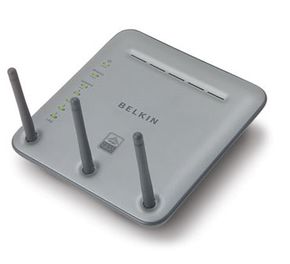
Photo courtesy Consumer Guide Products
This Belkin router provides wireless and Ethernet connections, and it acts as a firewall.

Once you have all of your equipment, all you need to do is install it and configure your computers so they can talk to one another. Exactly what you need to do depends on the type of network and your existing hardware. For example, if your computers came with network cards already installed, all you'll need to do is buy a router and cables and configure your computers to use them. Regardless of which type you select, the routers, adapters and other hardware you buy should come with complete setup instructions.

The steps you'll need to take to configure your computers will also vary based on your hardware and your operating system. Check out these links for more detail on how to get your computers talking to one another:

Nervous about Networking?
Most people who have a basic familiarity with computers can set up a network without much help. But the idea of installing cards and making connections makes some people nervous. Many Internet service providers (ISPs) offer home networking packages. For a monthly fee (and sometimes an initial setup cost), the ISP will provide you with the hardware and support you need to build and maintain your network.


Next, we'll examine the advantages and disadvantages of wireless networks.

Wireless Networks

The easiest, least expensive way to connect the computers in your home is to use a wireless network, which uses radio waves instead of wires. The absence of physical wires makes this kind of network very flexible. For example, you can move a laptop from room to room without fiddling with network cables and without losing your connection. The downside is that wireless connections are generally slower than Ethernet connections and they are less secure unless you take measures to protect your network.

Faster Wireless
Most home wireless networks use 802.11g wireless networking, which transmits data at 2.4 GHz with a speed of 54 megabits. A newer wireless standard is 802.11n, which is designed to be faster and offer a longer range than 802.11g. However, the 802.11n standard isn't yet final, and early 802.11n hardware has failed to meet expectations in tests.

If you want to build a wireless network, you'll need a wireless router. Signals from a wireless router extend about 100 feet (30.5 meters) in all directions, but walls can interrupt the signal. Depending on the size and shape of your home and the range of the router, you may need to purchase a range extender or repeater to get enough coverage.

You'll also need a wireless adapter in each computer you plan to connect to the network. You can add printers and other devices to the network as well. Some new models have built-in wireless communication capabilities, and you can use a wireless Ethernet bridge to add wireless capabilities to devices that don't.

If you decide to build a wireless network, you'll need to take steps to protect it -- you don't want your neighbors hitchhiking on your wireless signal. Wireless security options include:

  • Wired Equivalency Privacy (WEP)
  • WiFi Protected Access (WPA)
  • Media Access Control (MAC) address filtering

You can choose which method (or combination of methods) you want to use when you set up your wireless router. The Institute of Electrical and Electronics Engineers (IEEE) has approved each of these security standards, but studies have proven that WEP can be broken into very easily. If you use WEP, you may consider adding Temporal Key Integrity Protocol (TKIP) to your operating system. TKIP is a wrapper with backward compatibility, which means you can add it to your existing security option without interfering with its activity. Think of it like wrapping a bandage around a cut finger -- the bandage protects the finger without preventing it from carrying out its normal functions.

In the next section, we'll learn about some innovative home network technologies on the rise.

New Home Network Technology

New developments in home networks involve more than just home offices and entertainment systems. Some of the most exciting advances are in healthcare and housing.

In healthcare, Wireless Sensor Networks (WSNs) let doctors monitor patients wirelessly. Patients wear wireless sensors that transmit data through specialized channels. These signals contain information about vital signs, body functions, patient behavior and their environments. In the case of an unusual data transmission -- like a sudden spike in blood pressure or a report that an active patient has become suddenly still -- an emergency channel picks up the signal and sends medical services to the patient's home.

The housing industry is another important field for home network technology development. Bill Gates owns one of the few smart houses in existence, but someday, we might all live in one. A smart house is a fully networked structure with functions that can be controlled from a central computer, making it an ideal technology for homeowners who travel frequently or for homeowners who simply want it all.

Keeping up with the Jetsons
These builders and developers are working toward bringing smart house technology to a neighborhood near you: Lennar, Home Director, Windows Home Server and the Internet Home Alliance.

Builders are beginning to offer home network options for their customers that range from the primitive -- installing Ethernet cables in the walls -- to the cutting-edge -- managing the ambient temperature from a laptop hundreds of miles from home. In one trial experiment called Laundry Time, Microsoft, Hewlett Packard, Panasonic, Proctor & Gamble and Whirlpool demonstrated the power of interfacing home appliances. The experiment networked a washing machine and clothes dryer with a TV, PC and cell phone. This unheard-of combination of networked devices let homeowners know when their laundry loads were finished washing or drying by sending alerts to their TV screens, instant messaging systems or cell phones.

Networked washing machine
Photo courtesy Getty Images
In the future, our washing machines will call us
on our cell phones when a load is done.

This technology is promising, but it's not quite ready for the consumer market yet. The average consumer can't afford a WSN or a smart house, and if he could, there's a good chance he wouldn't be able to operate these sophisticated systems. Worse yet, the technology could change, making WSNs and smart houses obsolete within a few years. Another issue is security -- until developers find a way to secure these networks, consumers risk sharing medical information and leaving their homes open to attack.

For lots more information about home networks, installation and technology, see the links on the next page.

Lots More Information

Related HowStuffWorks Articles

More Great Links

Sources

  • Borisov, Nikita, Ian Goldberg and David Wagner. "(In)Security of the WEP algorithm." Berkeley University. (10/2/2007).
    http://www.isaac.cs.berkeley.edu/isaac/wep-faq.html
  • Coyle, Karen. "The Technology of Rights: Digital Rights Management. Based on a talk originally given at the Library of Congress, November 19, 2003."(10/1/2007).
    http://www.kcoyle.net.drm_basics.pdf.
  • Haskin, David. "FAQ: 802.11n wireless networking." Computerworld. 5/16/2007 (10/2/2007). http://www.computerworld.com/action/article.do?command=
    printArticleBasic&articleId=9019472
  • Lange, Peter. "WiFi Update." PC Update Online. 4/2004 (10/2/2007). http://www.melbpc.org.au/pcupdate/2404/2404article6.htm
  • Larkin, Eric. "WinHEC: Gates on Mobile Computing, Home Networks, Windows Server." Today@PC World. 5/15/2007 (10/1/2007). http://blogs.pcworld.com/staffblog/archives/004390.html
  • Linux. "Home entertainment networks coming on strong." 7/6/2006 (10/1/2007).
    http://www.linuxdevices.com/news/NS4342517630.html
  • Marriott, Michel. "I Know It's Here Somewhere…" New York Times. 2/19/2004 (9/28/2007).
    http://query.nytimes.com/gst/fullpage.html?
    res=9D02E2D6123DF93AA25751C0A9629C8B63
  • McNamara, Paul. "Your washer's calling and the dryer's on IM." Network World. 7/17/2006 (9/28/2007). http://www.networkworld.com/columnists/2006/071706buzz.html 
  • Regan, Keith. "Ten Scary Things About Home Networks, Part 1." TechNewsWorld. 2/22/2007 (10/1/2007).
    http://www.technewsworld.com/story/55882.htm
  • Regan, Keith. "Ten Scary Things About Home Networks, Part 2." ECommerce Times. 3/2/2007 (10/1/2007).
    http://www.ecommercetimes.com/story/65022.html
  • Snyder, Joel and Rodney Thayer. "Explaining TKIP." Network World. 10/4/2004 (10/2/2007).
    http://www.networkworld.com/reviews/2004/1004wirelesstkip.html
  • Stankovic, John A. "Wireless Sensor Networks for In-Home Healthcare: Potential and Challenges." Department of Computer Science, University of Virginia. (9/28/2007).
    http://www.cs.virginia.edu/papers/wlsn_health_HCMDSS05.pdf
  • Universities and Colleges Information Systems Association. "Choosing Cat 5e or Cat6 Cabling." (10/2/2007).
    http://www.ucisa.ac.uk/groups/ng/docs/ChoosingCat5Cat6.htm
  • Ward, Mark. "Troubled times for home networks." BBC News. 8/21/2007 (10/1/2007).
    http://newsvote.bbc.co.uk/mpapps/pagetools/print/news.bbc.co.uk/1/
    hi/technology/6949607.stm
  • Wilson, James M. "The Next Generation of Wireless LAN Emerges with 802.11n." White paper: Intel Communications Technology Lab. 9/9/2004 (10/1/2007).
    http://www.intel.com/technology/magazine/communications/wi08041.pdf